Remapping Insert Key
A tutorial on how to remap a key on your keyboard to the Insert key, which is commonly used to toggle our cheat menus.
Installing the PowerToys App.
Open Microsoft Store and search for “PowerToys”
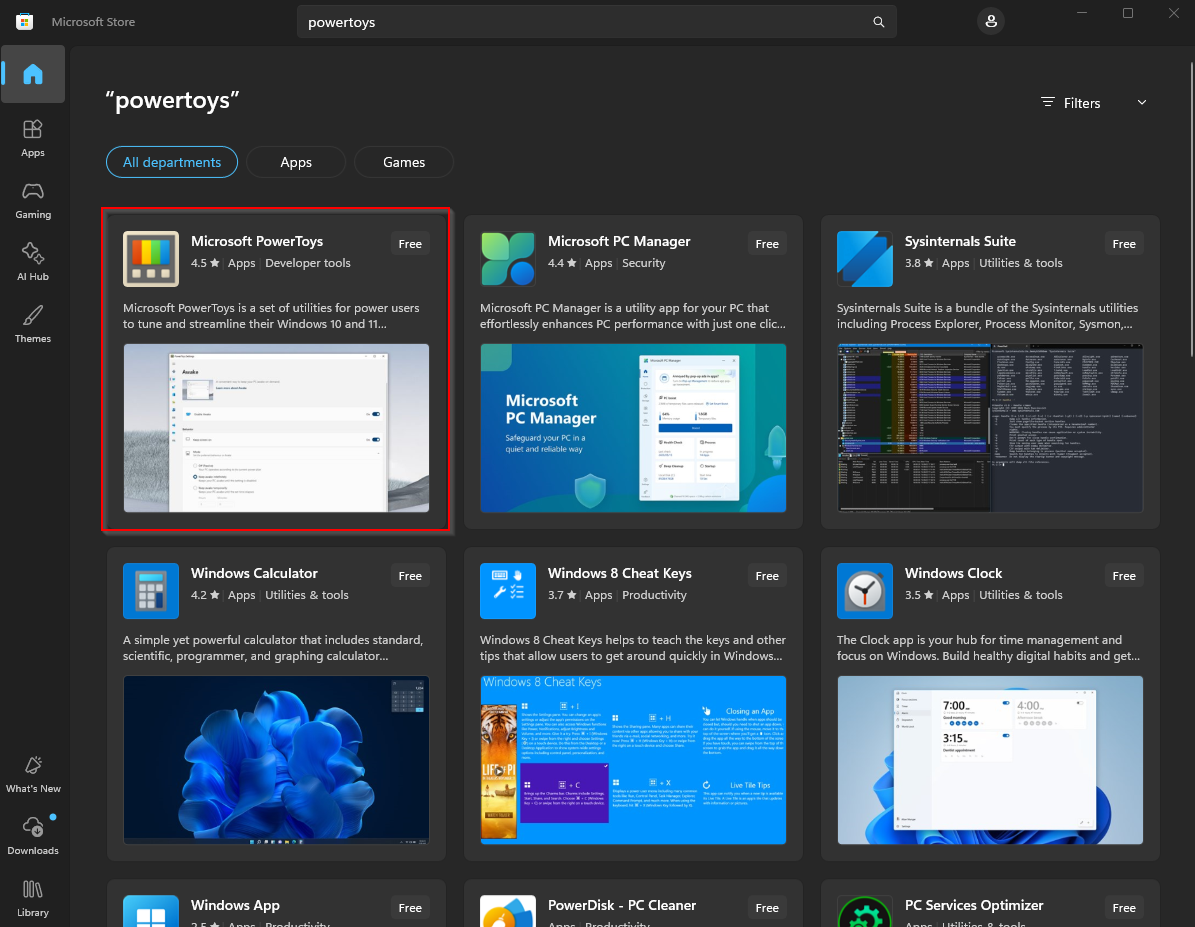
Install Microsoft PowerToys & open it.
Open & Configure the Key Remapping.
Click on Input & Output, then Keyboard Manager. Enable Keyboard Manager.
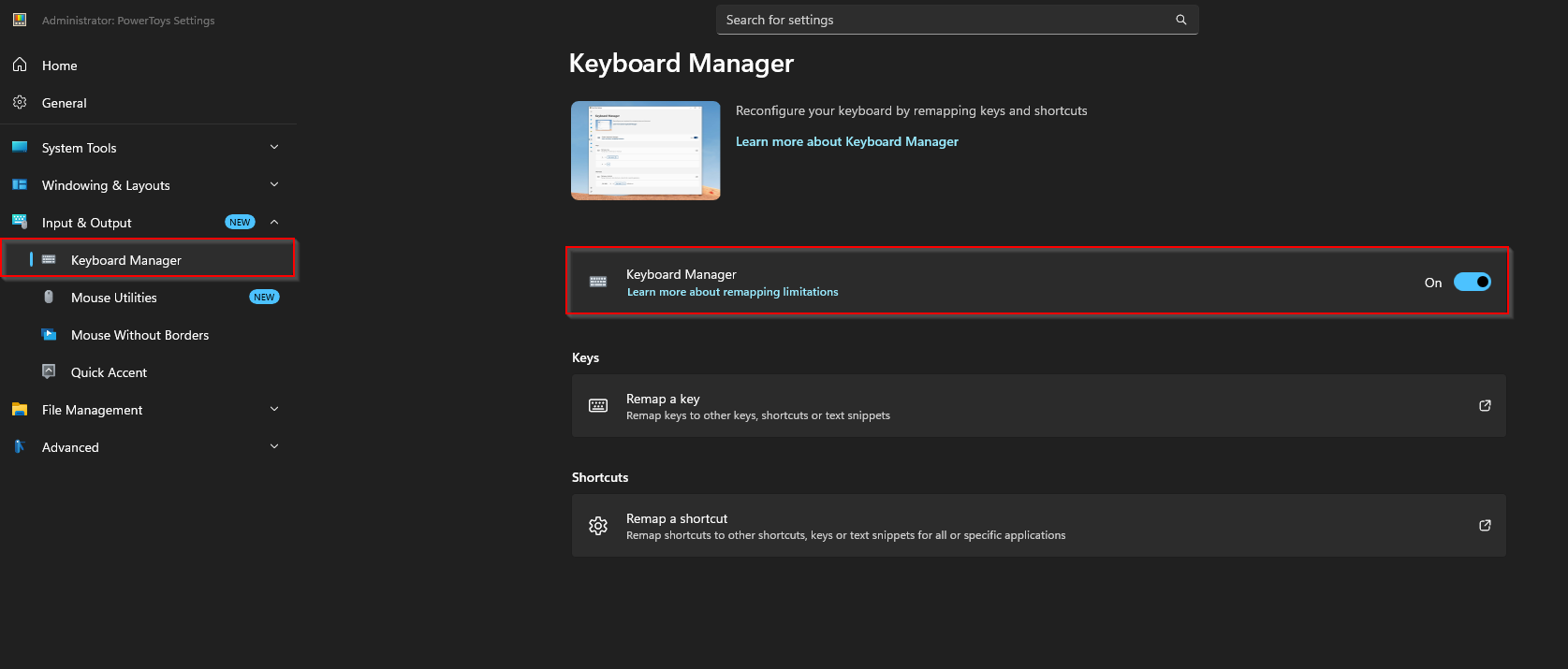
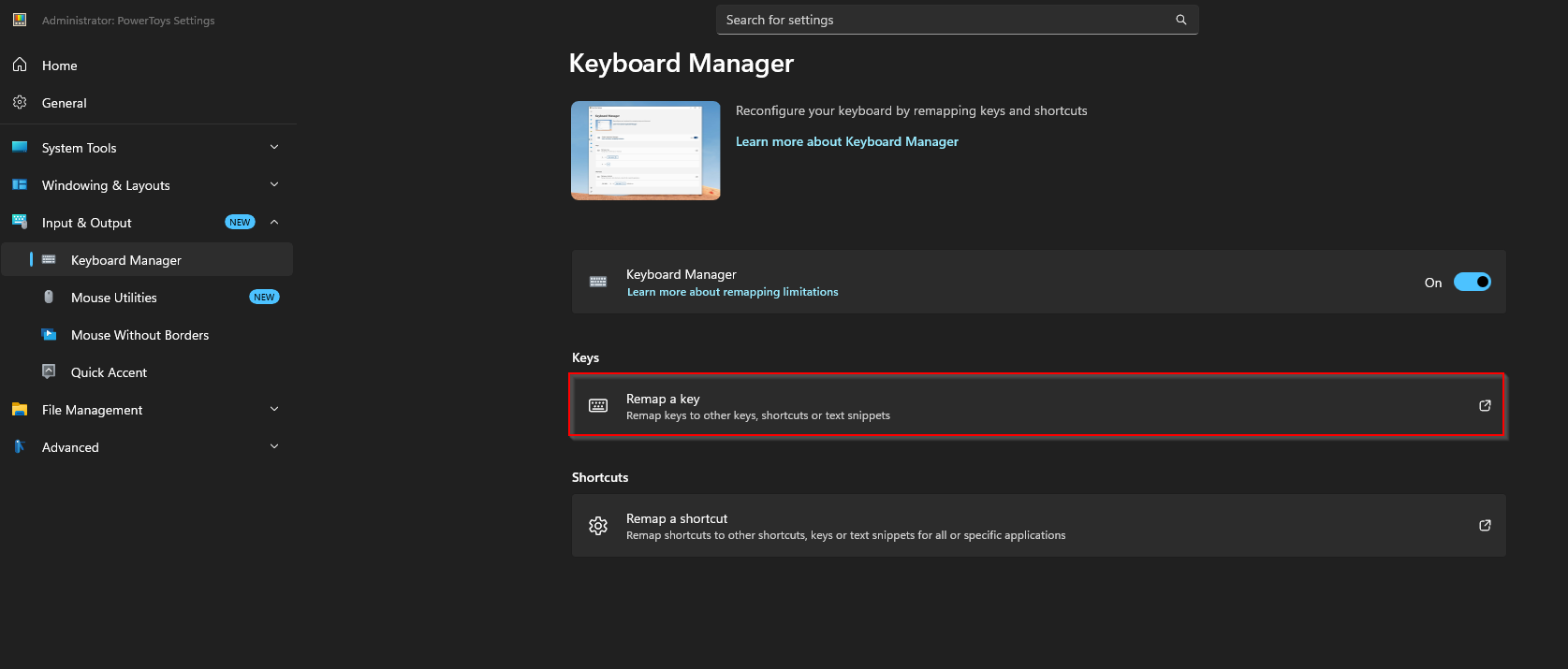
Click Remap a key.
Click Add key remapping.
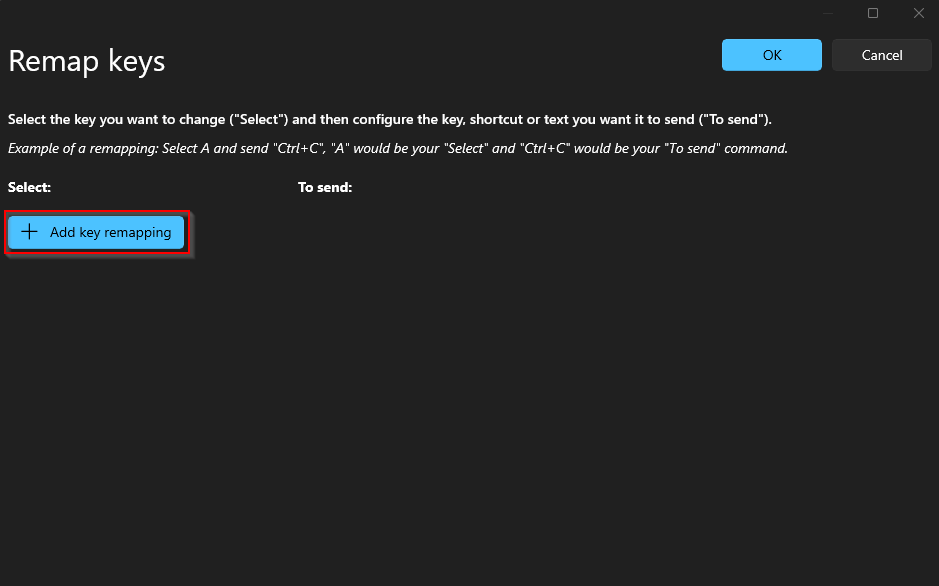
Click Select and then press the key on your keyboard which you want to remap to insert.
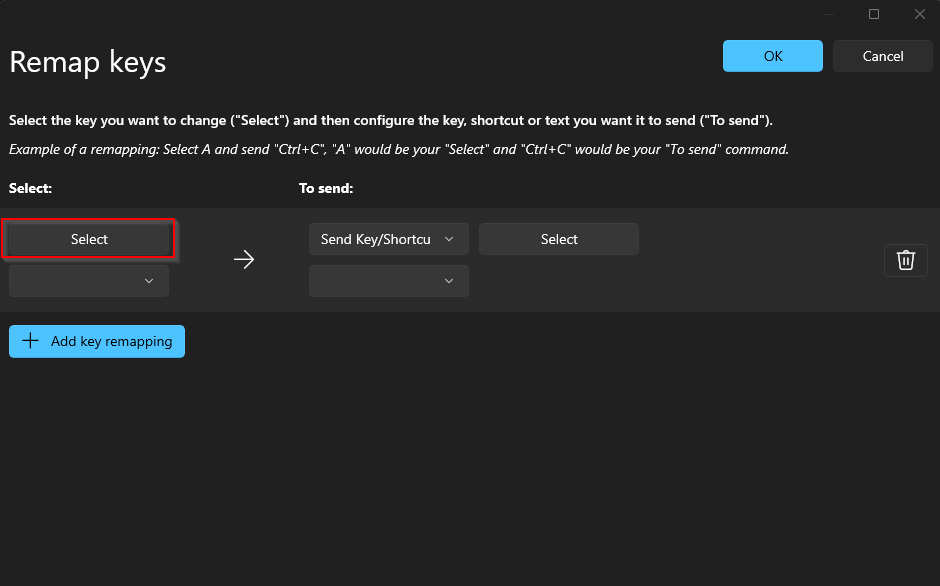
Once you press the key you want to remap it will show underneath “Key selected:”, then click ok.
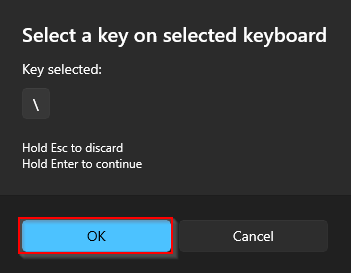
Change the To Send key to Insert.
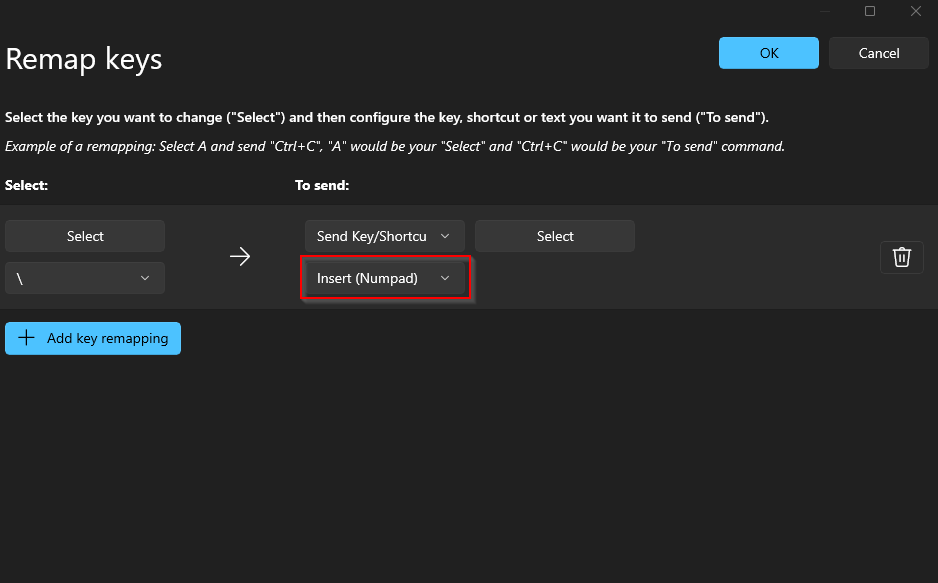
Press ok.
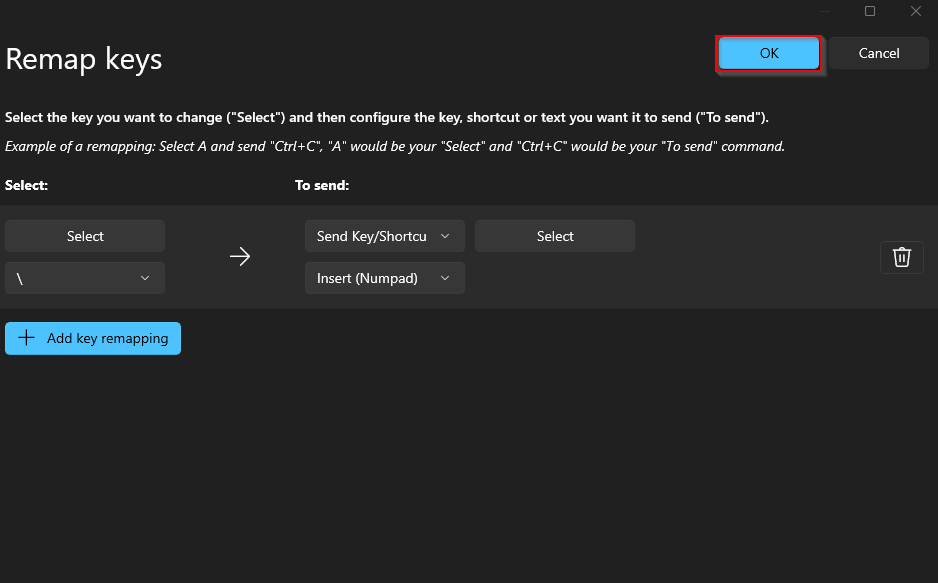
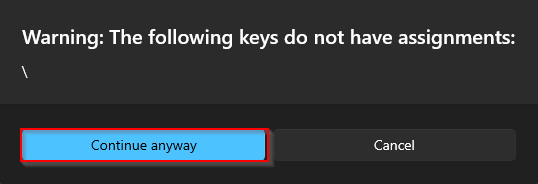
Press Continue anyway.
Finished!
Thats it, now you can press your remapped key and it will register as Insert, allowing you to toggle the menu if you dont have a physical insert key on your keyboard.
Published at May 15, 2026