Common Errors
Error Fixfor all our products
Please make sure PIN is not set in Windows sign-in options and manually disable Hyper-V
- Open windows search and type “Sign-in Options”, then open it in settings.
- Find the setting below and make sure it is disabled.
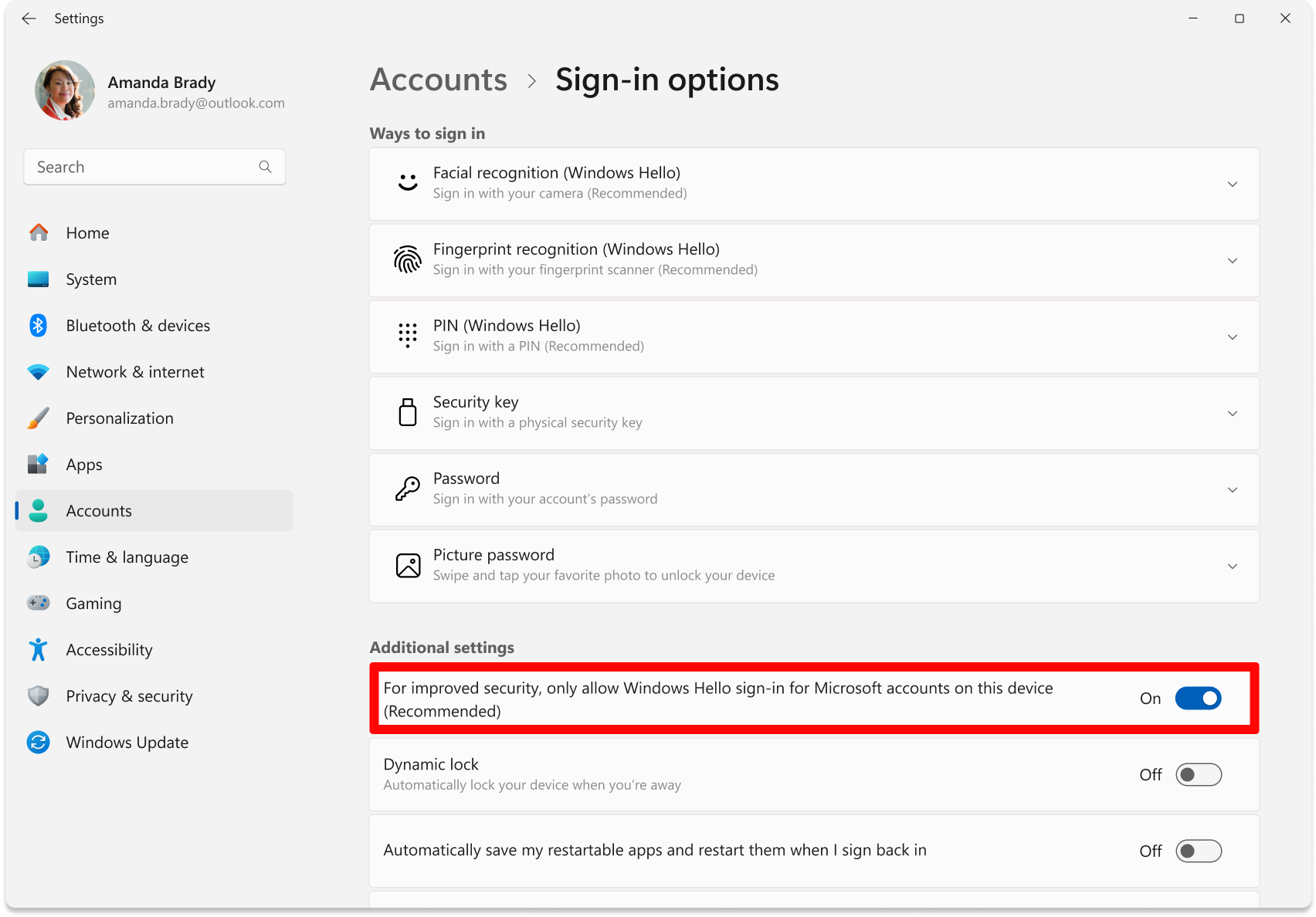
- Click on PIN (Windows Hello), and ensure it is NOT SET, if it is, then remove your PIN and make sure a password is set.
- Download & run this file, it will automatically restart your PC after 10 seconds: https://download.solarservicesdocs.com/remove-hvix-hvax
Any Disable/Failed To Disable Hyper-V Errors
Download & run this file, it will automatically restart your PC after 10 seconds: https://download.solarservicesdocs.com/remove-hvix-hvax
Failed to allocate/map memory
- Disable everything in Task Manager -> Startup Apps and then try again after PC restart.
- Make sure that loader located on PC and not on cloud space (e.g OneDrive, Mega.nz).
- Download AutoRuns and disable everything that related to Microsoft/Windows/CurrentVersion/Run. But DO NOT touch anything else.
Run DISM Repair Commands/Failed To Repair Files/Restore System Files
- Open Command Prompt as Administrator.
- Enter each line below seperately into the command prompt waiting till each one finishes then doing the next one:
DISM /Online /Cleanup-Image /CheckHealth
DISM /Online /Cleanup-Image /ScanHealth
DISM /Online /Cleanup-Image /RestoreHealth
sfc /scannow - Restart your PC.
Failed to load crt lib/Install Visual Runtimes
- Download The Visual C++ Runtimes below.
https://download.solarservicesdocs.com/runtimes - Extract the folder.
- Run the install.bat in the extracted folder and wait until it installs everything.
- Restart PC
Install DirectX
- Download The DirectX Setup below.
https://download.solarservicesdocs.com/directx - Run the installer and wait until it is finished.
- Restart PC
Published at May 15, 2026